
This is an introduction to the Procedural 2d noise features added in update 1.3.
This video gives you a quick introduction and some examples, or you can read more details below
Noise texture tool
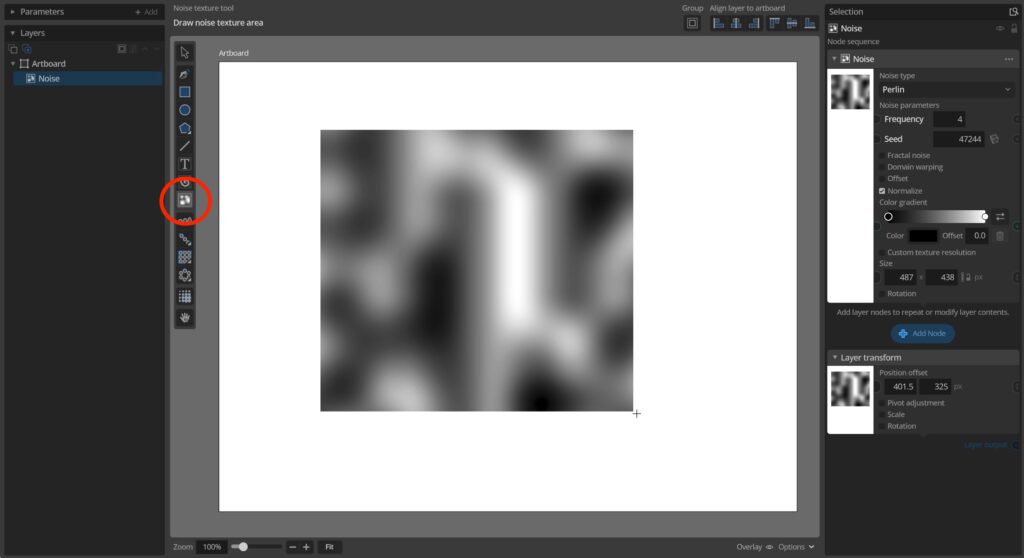
To add a noise layer to you document you can use the new Noise texture tool and draw a rectangle where you want the noise. The layer can then be resized, moved or transformed as any other layer, much like an imported pixel image. The difference being that instead of being filled with an imported image the image here is a rendered noise field based on the Noise node settings.
Configuring noise
You can configure your noise by setting type, frequency and many other settings to produce different types of noise patterns. On each change the noise texture image will be re-rendered. By default the texture is rendered at 256×256 resolution. This might seem small but is more than enough for most generative use cases as noise is usually used to create smooth gradients, but if you wish you can increase the rendering resolution using the custom texture resolution parameter.
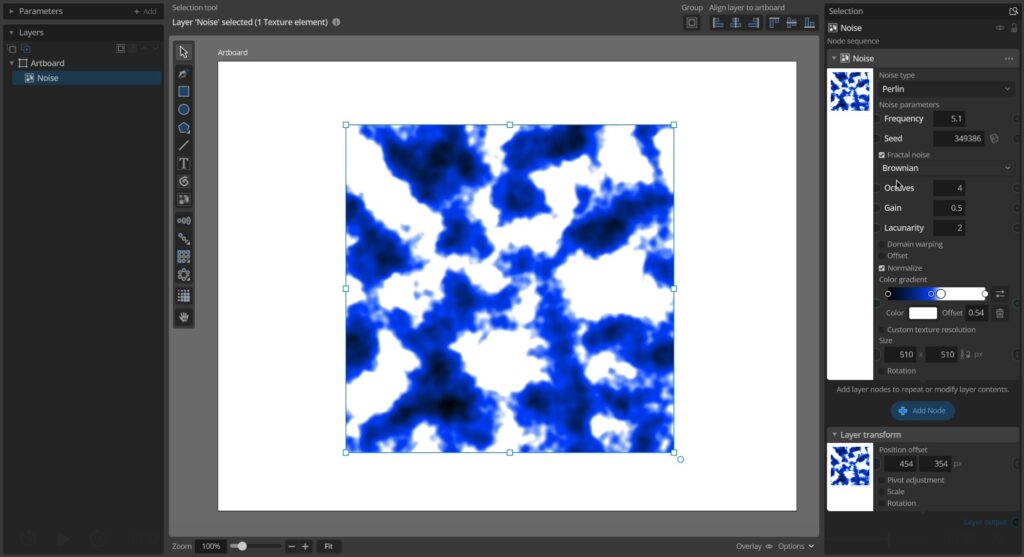
One of the more powerful ways to customize a noise layer is to change the color gradient it uses. The noise is generated as a field of 0-1 values, but instead of just mapping this to a linear black and white gradient you can change this gradient to produce different effects. It can be as simple as inverting the noise by flipping the gradient, add color or add and move additional stops to make the noise non-linear and add bands or sharper edges.
Applying noise to designs
While noise textures can be nice on their own, and you can use Paragraphic to generate such textures for other use cases, their primary use in Paragraphic is to control other patterns and designs. To do this we use the Apply layer node, using the same workflow as when creating custom halftone effects : In the layer we want to modify by noise, add an Apply layer node and connect it to the Noise layer we want to use.
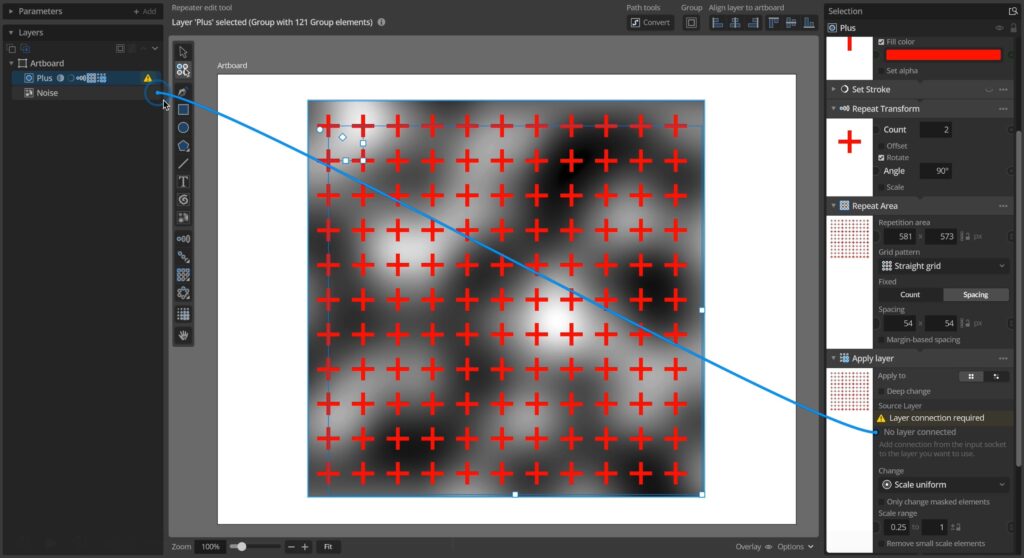
Once this is linked, the Apply layer node will sample the noise layer (or any other layer you connect) for each element in the layer and convert the sampled color to a 0-1 value based on the pixel darkness. This value is then applied to the change you select (default is uniform scaling) modifying the individual elements.
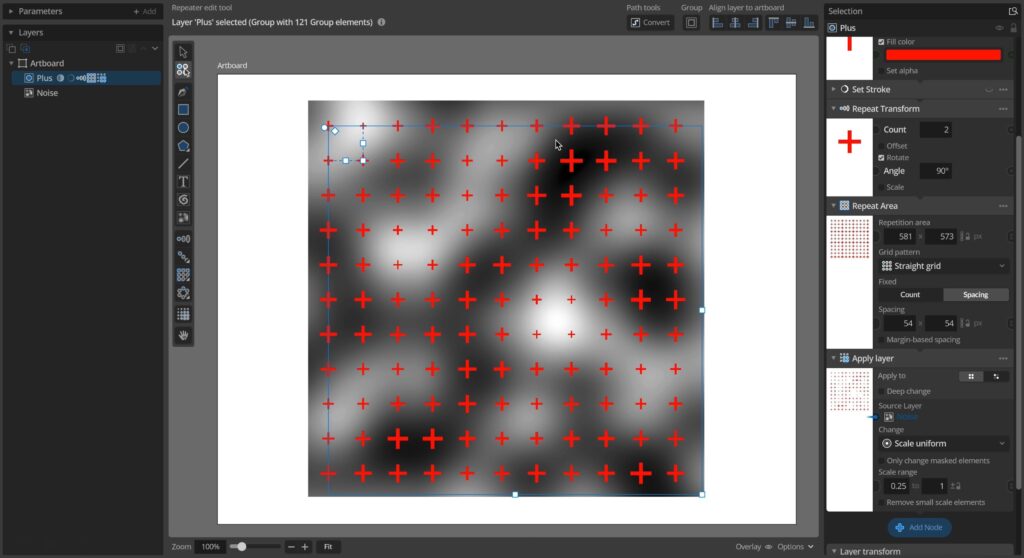
You can then configure the Apply layer node to control how/what will be changed in the individual elements, and of course you can still modify the noise layer to update the noise there. Once the noise is linked like this you can also hide the noise layer if you don’t want it to be visible in the final design, the Apply layer node will still be able to sample it and use it as if it was visible.
This technique can be used to introduce natural looking gradual randomization of patterns or just about any designs with a lot of elements you want to add variation to.
While this example just uses a single simple noise layer you can also make more complicated setups combining noise with for example a gradient or some other overlapping elements in a group, and then use this group layer in the Apply layer node.