
This is an introduction to the color gradient features added in update 1.3.
This video below gives you a quick introduction and some examples.
Using gradients for element fill
Color gradients have been a standard feature in many vector design tools for a long time and you can now use them in Paragraphic as well to give your designs a little more life and variation. The simplest way of using color gradients is to just use them to apply as a fill for elements, using the Set Fill node in Gradient mode.
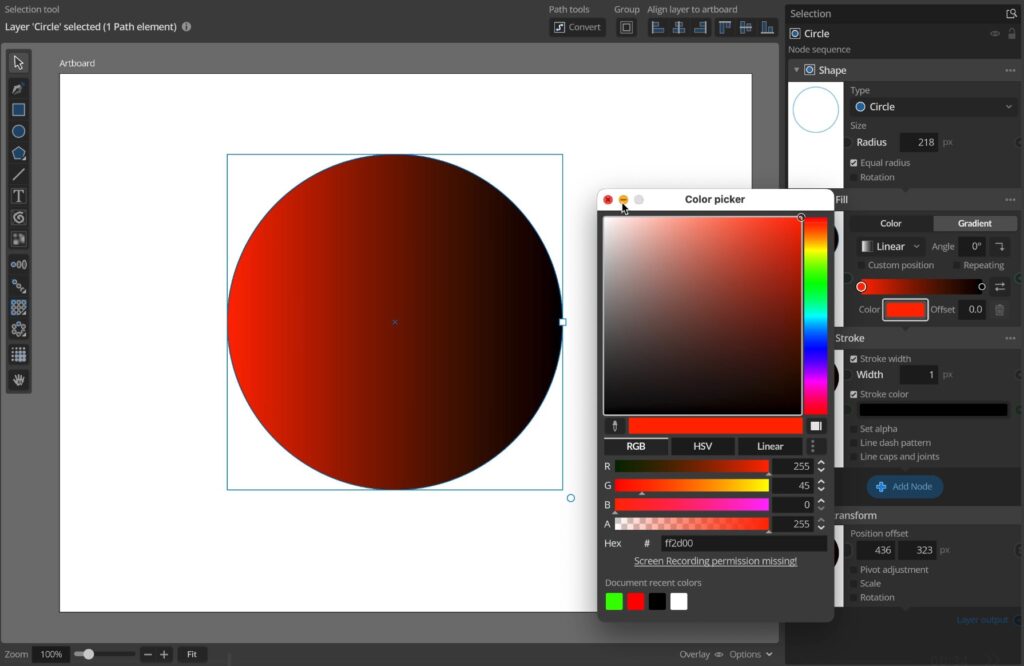
This presents you with a gradient definition interface where you can select type of gradient and gradient transformation and repetition settings (like linear gradient angle, radial gradient radius etc). Since Paragraphic is closely tied to the SVG standard the way these gradients are defined and the features available also reflects the SVG gradient definitions.
Below the gradient type and transformation settings there’s a preview of the color gradient with markers for the color stops. You can select these to edit the color and position of each stop, or click on the gradient to add new stops.
This whole section with both the gradient type and transformation and the color stops information is considered a single gradient parameter, and as such it has an input and output socket like other parameters to allow you to connect and reuse this definition in multiple layers and nodes. You can also add gradient parameters to your document top left Parameters panel to define gradients for easy editing and reuse.
Using gradients in other nodes
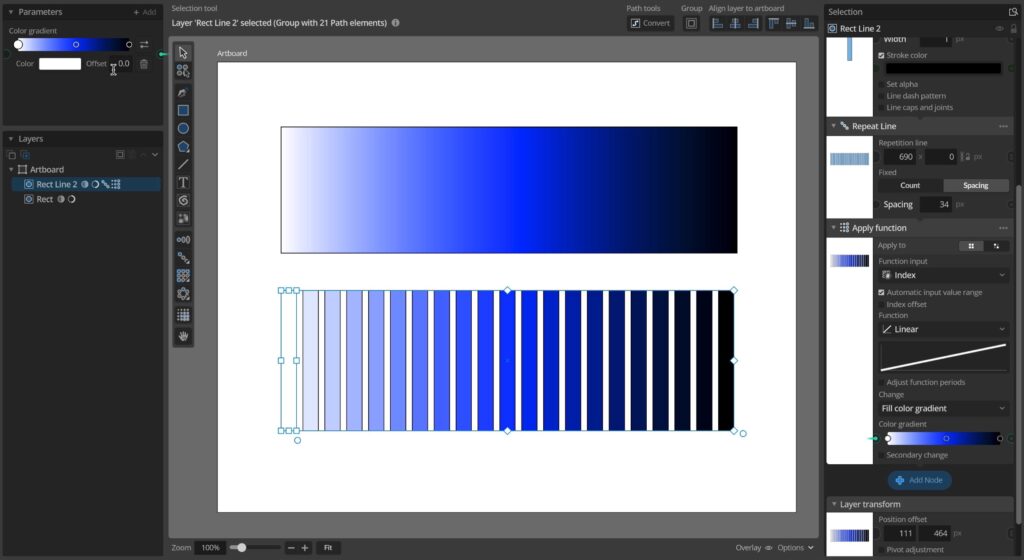
Beside using color gradients to sett as a gradient fill you can use gradients in many other nodes to sample a single color to use. For example you can use it in the Apply function or Randomize nodes to set the fill color of elements in a repeated group by sampling a color from a gradient for each element.
This makes it a lot easier to create interesting color variations and visually adjust the how the colors change.
In cases like this where only the actual color gradient and not the type and gradient transformation is used those parts of the gradient controls will be hidden, showing only the gradient preview and stops editing. For custom document parameters you can control this by toggling this on/off in the parameter configuration panel accessible from the parameter context menu.
Parametric gradients
In addition to using the gradient parameter sockets to connect and reuse gradients as discussed above you can also use it to define a parameter using separate parameters. You do this by adding a Parametric gradient input node to the gradient parameter.
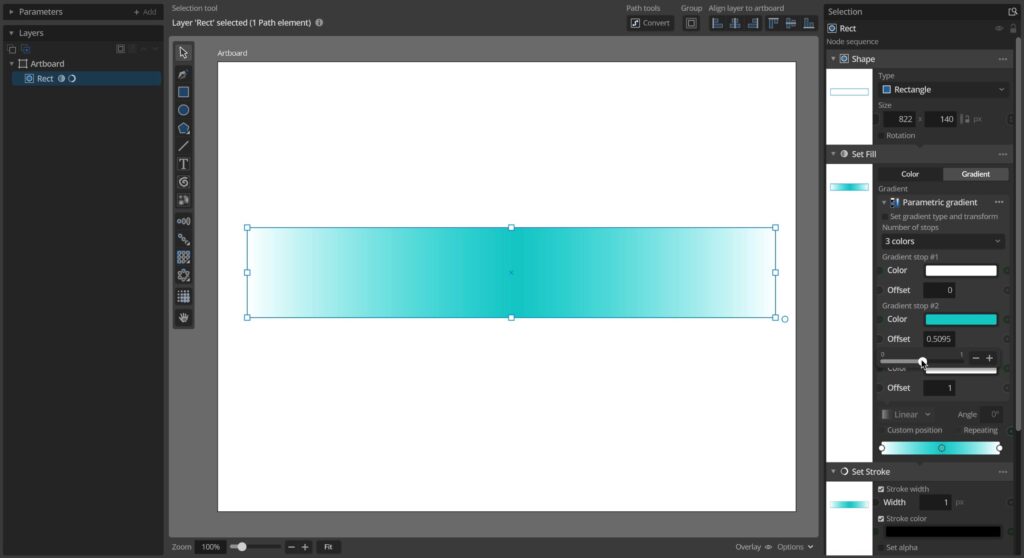
When this has been added the Parametric gradient node interface will control and define the gradient instead. If you’re just manually configuring the gradient this doesn’t really matter, but using this setup you can now control individual aspects of the gradient definition with other parameters. For example you could link individual stop colors to colors you’ve defined elsewhere, or you could set up stop offsets to vary based on some pattern as the elements repeat.
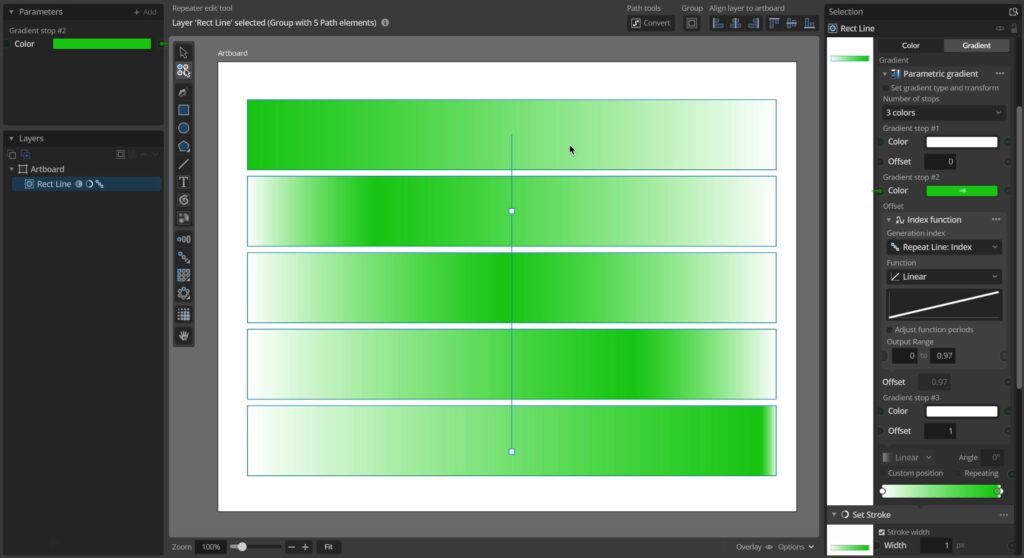
In other words you can now create gradients of gradients.
That’s it for this introduction to color gradients in Paragraphic, how you’ll have fun with these new features!