
This new feature update of Paragraphic is vaguely themed around data-driven design and allowing new ways to generate designs (like custom charts or data visualizations) based on imported data tables. However, most of the big new features and improvements are general enough to be useful regardless of what you use Paragraphic for.
Below you can get a check out a quick overview video about the new features, and then you can read more about the changes in detail below, including the full change list at the bottom.
Multiple artboard support
To start things off with this update you can now add additional artboard work areas in a single document using the new Artboard tool and Artboards now also have a position parameter controlling where they’re placed in the work area and so you can move them around by dragging their label or setting this position.
Layers can still be linked across artboards, but when exporting your design this is limited to one selected artboard to give you greater control of what your exported output will be.
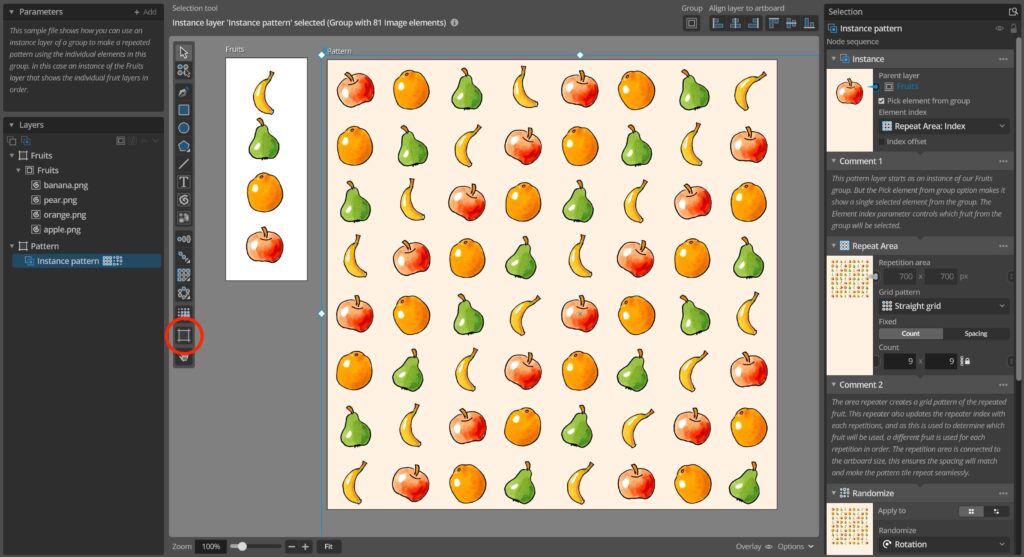
This can be very useful for example to keep one artboard where you work on pattern elements in isolation and one artboard that shows the repeated compiled pattern using these elements. Or if you wish to have multiple different designs that you want to generate based on the same settings or inputs but export separately you can now set up one artboard for each and have them all generate based on the same document parameters.
Table parameters and new nodes for data-driven designs
Moving on into the new data-driven design features this update adds Table parameters that allow you to set up little spreadsheet-style data tables of values or strings that you can then get values from to use in generation. You can also import (or paste in) CSV-format data tables into these Table parameters, making it a lot easier to use existing data from other sources and working with a single data table source where different columns can then be used for different generation purposes. Once such a data file has been loaded in you can even quickly reload data from the same file location with a single click, in case you’ve changed the data externally.
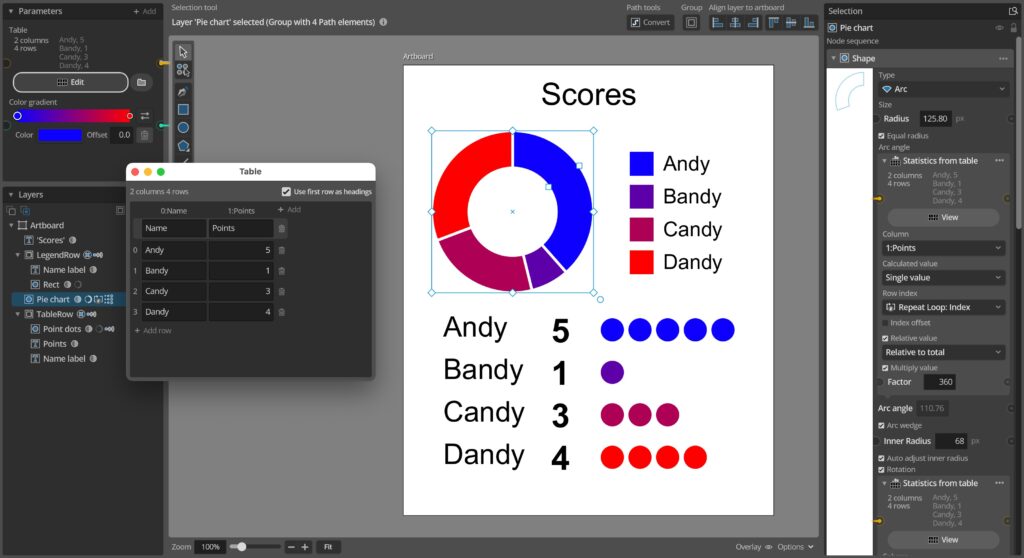
These new Table parameters replace the old simple List parameters (that just allowed a comma-separated list of values) and all related nodes that used these (such as Value from list, Apply value list etc) have been converted to new Table-based counterparts that work more or less the same, but now also allow you to select what table column to use if the table has multiple columns. Loading old files using these features should convert them automatically to the new Table versions.
To enable more data-visualization and chart construction use cases a new Statistics from table input node has also been added which allows you to get access to things like total, max, min and average values from Table to enable making things like stacked area graphs, relative scaling bar charts or pie charts.
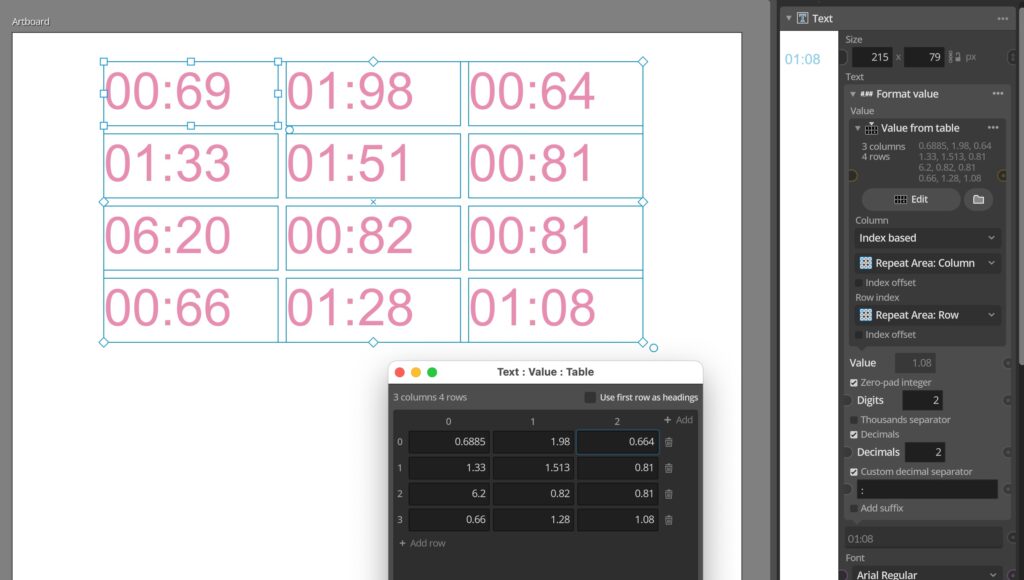
And for displaying values as text a new special Format value string input node makes it easier to get values to display the way you want. And if you’re still not happy, maybe the new Replace text input node can help you edit the text to your liking.
Element property access
This update also adds a new set of Element input nodes (Element Position, Element Size, Element Color and Element Index). These input nodes let you get access to various properties of the element currently being processed by the Change or Group node they are added in. This allows you to calculate for example a rotation, scale or color change based on the individual element size or position.

To help with position-based transformations and calculations useful in these situations new Vector Operation, Distance from Points and Angle from Points nodes are added to make it easier to use the Element position (or any other positions).
These new Element property input nodes also work very well for setting up selection conditions in the new Change node apply to Conditional selection. For example set up a condition to apply the change only to elements that are smaller than a set size, elements that have a fill color similar to some color or that are close enough to a specified point.

These are some basic examples of how you can use this new condition system, but it can be used for any situation where you want to automatically determine if some change should be applied or property changed based either on input data or previous generation results. Using the Combine Condition node you can also combine multiple conditions into one, forming complex logic chains.
Conditional selections and conditional input nodes
Along with the new data tables for organizing input data this updates adds a new system for setting up selection or parameter logic via Condition parameters. These can be found in the new family of Conditional input nodes (Conditional Value, Conditional Color, Conditional Text etc) and the new Group/Change node Conditional select mode. The Condition parameters allow you to define logic conditions (like is “value X > value Y”, or is “Color A the same hue as Color B”) and then connect whatever values you want to evaluate using this condition.

In the case of the Conditional input nodes they will return either a set True value or a set False value depending on if the condition is fulfilled. This can for example be used in data visualization to use different colors depending on if a represented data value if over or under a set limit value. Or in dynamic illustration situations to change a property if an element is close enough to some point.
In the case of the new Conditional Change/Group node apply to selection mode it will evaluate the condition for each element in the group (so this will only work in Each or Selected apply to modes, not in Group mode) and then apply the change only to the elements where the condition is true. So to make sure of this you’ll typically add a condition that evaluates some sort of property of the current element being processed, or using one of the element indexes.

Improved system font access
While adding text elements has been possible for a long time, you could previously only select some basic variation system fonts to use. In this update this is greatly improved and you can now used italic, bold, thin or condensed version of installed system font families that have such members.

It’ll take a little while to scan the system and import this font information first time you launch if you’ve got a lot of fonts installed, but after the first time it’ll only need to import newly added fonts when you launch.
Full change list
Finally, below you can find the full list of all changes and fixes in the new version
Changes and improvements
– New Data Table parameters, allowing you to import and work with spreadsheet-style tables of values and text for use in data visualization and data-driven designs. These new Table parameters replace the old comma-separated List parameters and also introduce new Table versions of all previous list-related nodes.
– Conditional parameters, a new type of parameters and input nodes that allow you to set up logic conditions controlling what color, value, text or other input to use based on if a defined condition is fulfilled or not, or to set up conditions in Change nodes for what elements should be changed.
– Element property access. Using a new set of new Element input nodes you can get access to size, position, indexes and colors of the currently processed element in Change or Group nodes. This allows you to apply specific changes based on these properties, and allow you to set up conditions for conditional selections in Change nodes based on them.
– Multiple artboard support, work with multiple artboards in a single document to make it easier to for example work with components separately from the finished design or different format/size design outputs.
– Improved text and font features, with access to more font collections and styles installed on the system in Paragraphic and SVG exports and multiple new text input nodes for modifying and formating text content.
– Added new Format value string input node, allowing you format values for text display.
– Added new Replace text and Change case string input nodes, allowing you manipulate text strings for display.
– Added new Map value value input node, allowing you to round an input value to the closest value from a table of values.
– Added new Statistics from table value input node, allowing you to get calculated values like totals, relative values and averages from value tables. Useful for generating data visualizations like pie charts or stacked graphs.
– Added new Vector operation 2d vector input node, making it easier to add, subtract or scale input 2d values.
– Added new Loop repeater node, that in itself doesn’t apply any changes to repeated elements but is convenient for index-based generation where other nodes change the repeated elements.
– The Index Value and Index Function input nodes along with other index selectors can now also access element row, column and index set by previous repeaters, allowing you to use these when applying changes in change nodes after repeating elements.
– Export settings are now saved per artboard, and changing export settings marks the document as having unsaved changes.
– Added a secondary highlight frame to value fields to make it easier to see what field is currently targeted by the hover value change controls.
– Some general performance improvements.
– Removed Add new document parameter connection menu option from input sockets of Document parmeaters.
– Changed Windows rendering backend to DirectX12 for improved stability and device support.
– Improved Linux package to be a zip-archive with included desktop/launcher icon and install script.
– Updated to Godot 4.6 rendering engine.
Bug fixes
– Fixed Artboard node panel preview not updating correctly when changing artboard properties.
– Fixed pasted values and text being inserted twice in some value fields.
– Fixed a couple of issues with repeater tools when used on some transformed layers.
– Fixed some issues with node previews for groups with text and path elements mixed.
– Fixed clicking replaced elements in group layers seleting the replacement original layer instead.
– Fixed Document parameters with input connection but no output connections not updating on input changes.
– Fixed bug where alt-click-drag duplicating layers would sometimes not work as expected.
– Fixed elements with gradient fill and no stroke getting a blue outline stroke in node previews.
– Fixed a rare macOS crash related to invalid content on the system pasteboard.
– Fixed some parameter warnings set during file loading (such as for missing fonts) not showing on the parameter.
– Fixed startup Help menu hint being obstructed by other UI elements.
– Fixed some display issues with small disabled checkboxes.
– Fixed confirmation dialogues on linux not being correctly centered.
– Fixed Value From Layer input node not working correctly when added as input to a text string parameter.
– Fixed some possible errors when loading files using nodes that use other layers as path inputs, such as Repeat on path and Point on path.
You can check for updates and download the latest version from within Paragraphic if you have it installed, or you download it from paragraphic.design