
You can do a lot by just using the various tools and nodes in Paragraphic and manually adjusting their parameters. But to truly unlock the potential of Paragraphic you need to understand how to automatically control properties via connections and input nodes.
This video below covers introduces these concepts, or you can read about them below in more detail.
Parameter input and output sockets
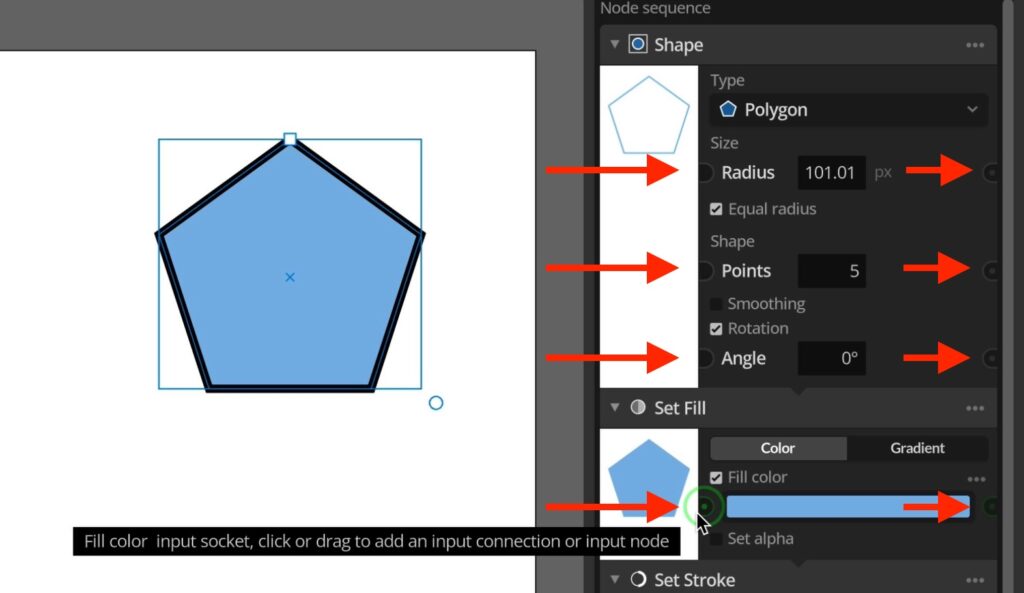
Most parameters, (such as colors, values, angles, sizes or offsets) have these little “sockets” to the left and right for connecting input to the parameter or output from it. Using these you can add connections between different parameters so that one controls the other.
Adding and removing connections
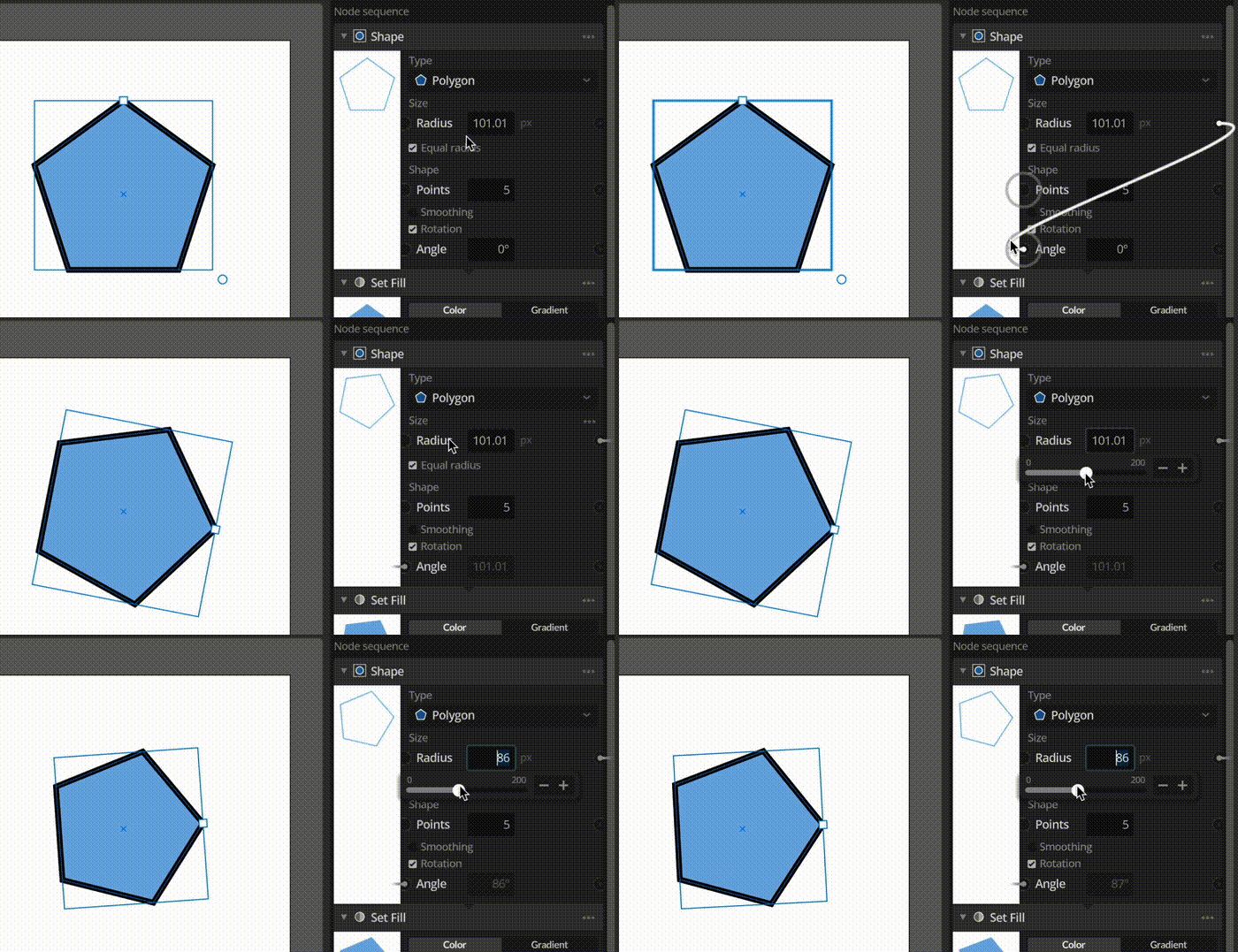
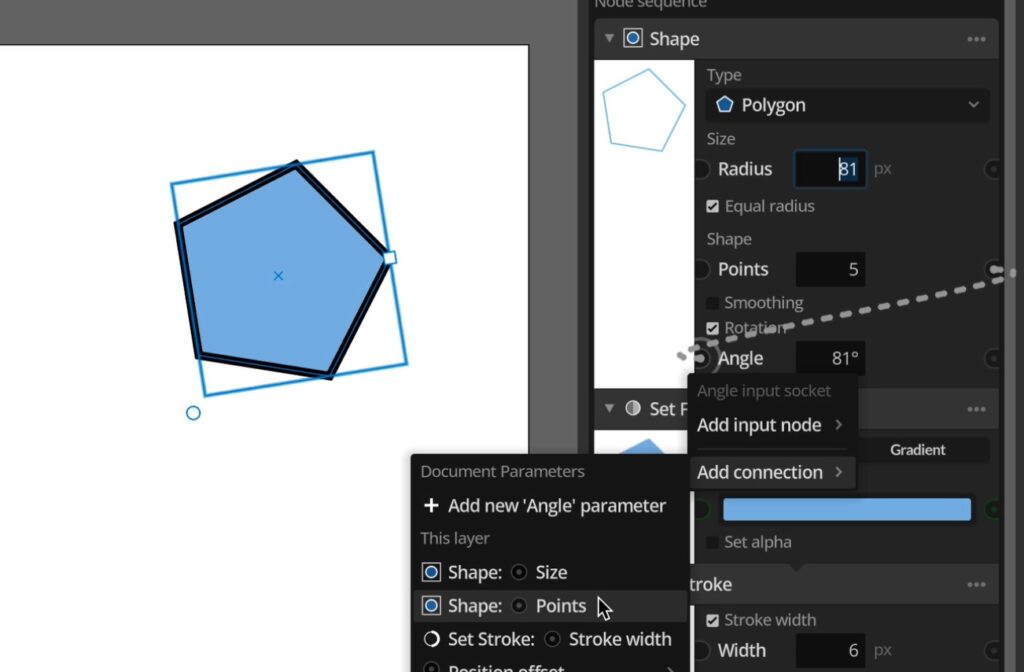
If you click and drag out from a socket you can see highlights of other matching parameter sockets you can add a connection to. Connections always go from an output to an input socket (though you can drag them in either direction). An alternative way of adding connections is to left- or right-click a socket and use the context menu to add a connection from the list available there.
A parameter with an input connection cannot be edited, and instead it will take its value from the output of the parameter it is connected to. This means that if you change the “output” parameter the “input” parameter will change as well to the same value. A parameter can have multiple output connections, but only one input connection at a time. Once a connection has been made it’s hidden to avoid cluttering up the view, and only the ends are shown to indicate the connection. But you can hover over these ends with the mouse to show the connection and see where it goes.
To remove a connection you can grab it by the input end and drag it loose from the socket, or you can click the socket to bring up the context menu and select to remove the connection there.
Document parameters
Now that you can connect parameters you might wonder what to connect those parameters to, and why you’d like to do that. On option is to start with the Document parameters, a set of parameters for the whole document you set up yourself up in the Parameters panel to the top left. You can think of this as a sort of control panel with parameters you’ll always have access to regardless of what layer is selected, where you can adjust setting used in your design.
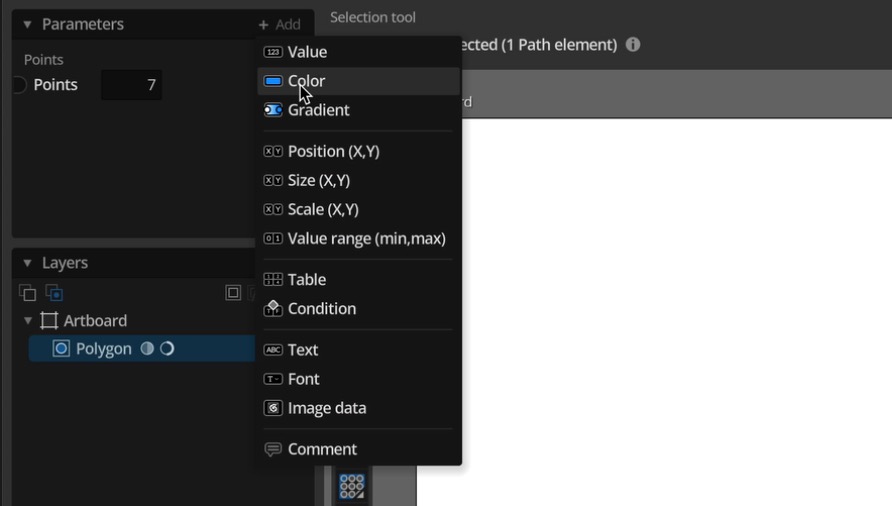
To add document parameters manually you can just use the add menu in the panel and select the type of parameter you want to add. After you’ve added it you can change the name, and depending on the parameter type you might also be able configure more settings for it (like value limits and other restrictions) using the configure parameter context menu item. In itself this parameter won’t do anything though, until you’ve connected it to be used as input for some parameter in a layer that you want to control.
Another more convenient way of adding document parameters is to drag a new connection from a parameter input up to the Add button in the Parameters panel. This will automatically add a new document parameter that is configured the same as the parameter you were dragging the connection from, and connected to it as input.
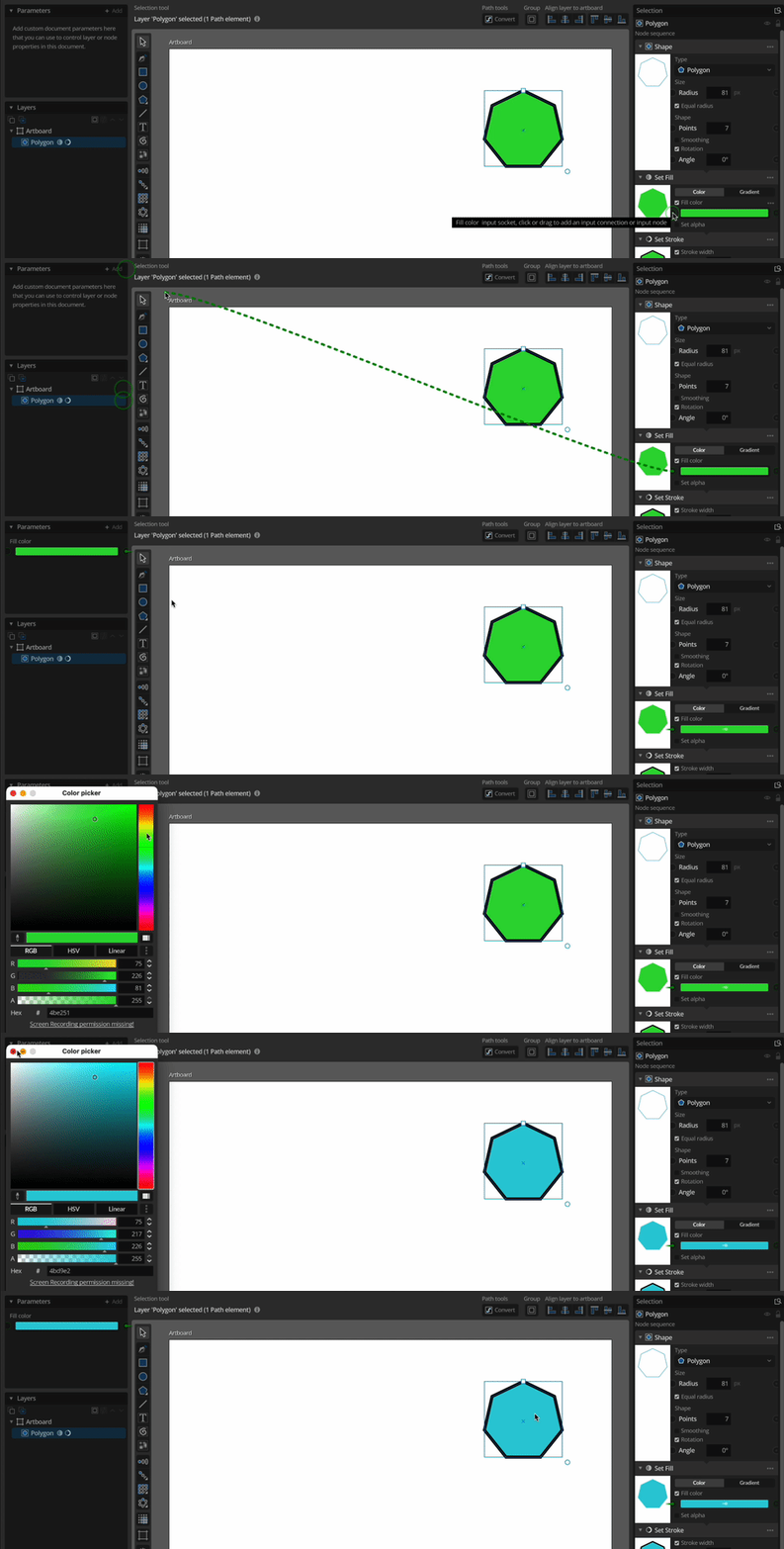
Using document parameters you can for example set up color parameters for colors you’re using in multiple places in your design, or values you want to quickly be able to change regardless of your current selection.
Socket types and sub-sockets
There are many different types of parameters, and these have different socket types that are indicated by the color of the socket and the connection lines for existing connections. For example Value sockets (for simple numeric values), 2d Values (a pair of values, used for positions, sizes etc), Colors (for colors) or more advanced socket types like Layer elements, Data Tables or Gradients that carry a lot of information.
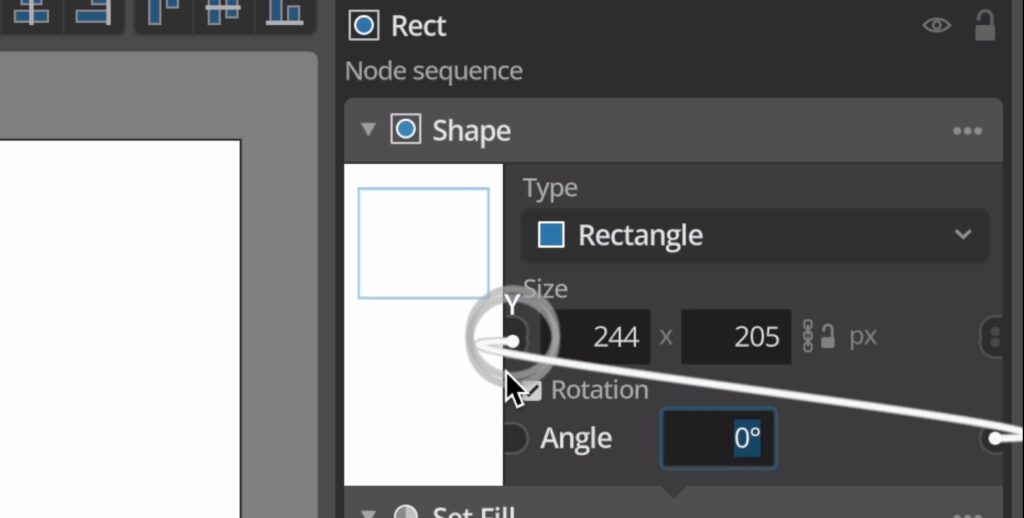
Typically the value types only allow connections to be dragged between and input and output socket of the same type (color to color or value to value) but some more complex parameters also have basic value sub-sockets. For example the 2d Value sockets also have two separate X and Y values sockets in them that you can use to connect input or output single value connection for these properties. And the Data Table parameters also have two value output sockets for the number of rows and column in the table for convenience.
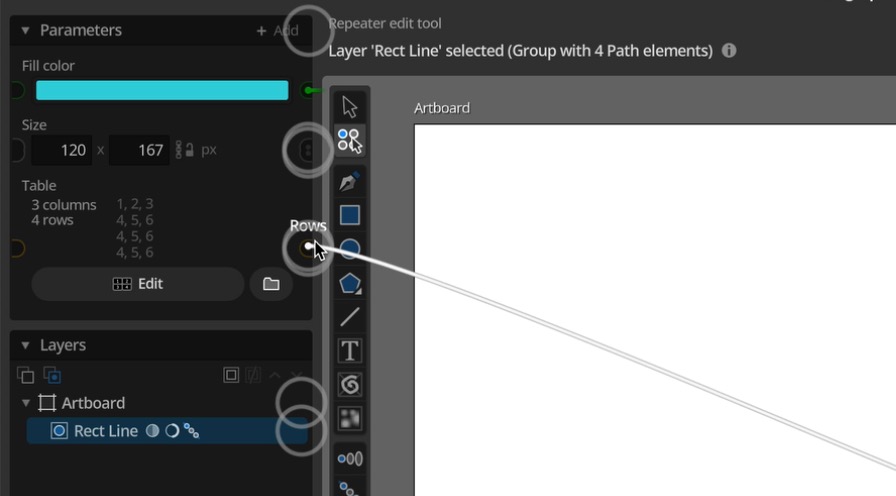
Using input nodes to modify connected input
Using connections to control parameters directly is enough in some cases, but the real power of using connections between parameters can be seen when you want to use an automatically modified version of the parameter value. For example a lighter version of a color or a value plus one. To achieve this we can use a different sort on parameter input called an input node. The word node might be unfamiliar to some, and if you’re wondering about that you can read more in the Hidden node graph post. In short you can think of input nodes as “adapters” you put on a parameter input socket that generates an input to use in the parameter, just like an input connection. For example it can be an Adjust color node that take a color and changes hue, saturation or brightness of it. Or an Expression node to allow you to change an input value.
To add an input node you can either click on the input socket of a parameter and use the add input node menu, or just right-click anywhere in most parameters to bring up the same menu. You can also use the same menus to remove an existing input node on a parameter. Just like with input connections you can’t edit a parameter value directly when it has an attached input node, and instead you edit the input node parameters to control the value.
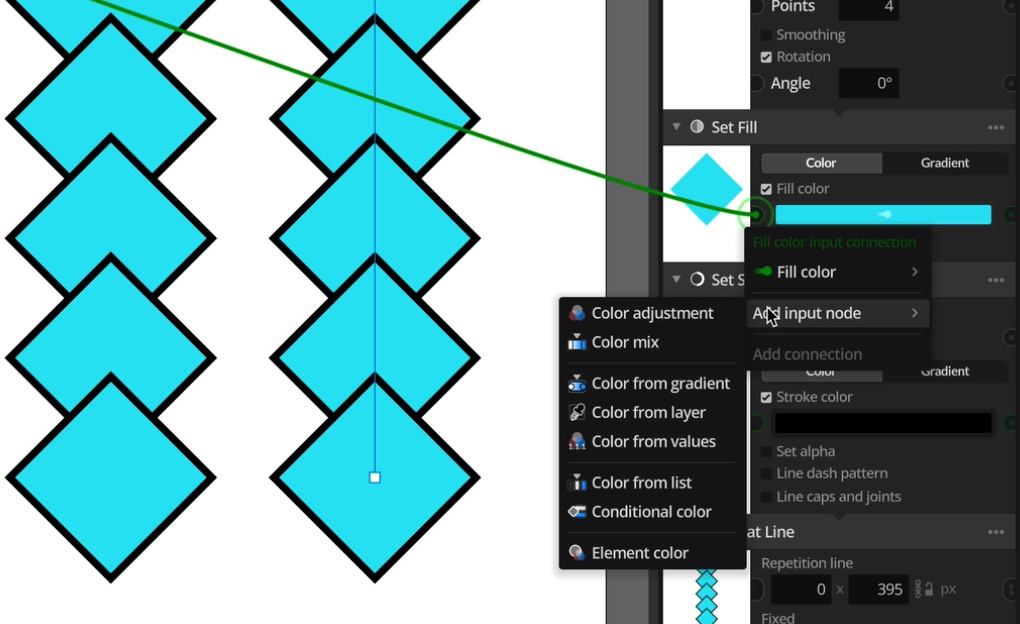
You can add an input node to a parameter that already has an input connection, and in this case Paragraphic will try to reconnect this input connection to be connected instead to the appropriate input parameter in the input node. Or you can just add these connections manually as discussed above.
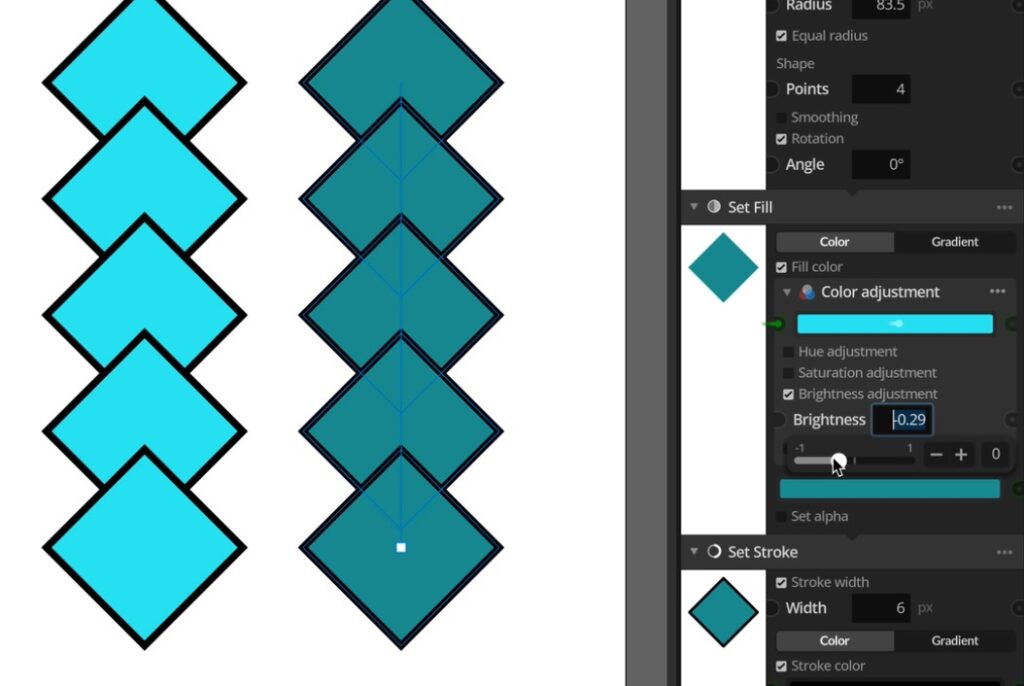
Combining document parameters, connections and input nodes you can set up parametric control of more or less all properties of a design, all controlled from your own custom document Parameters list.
Connections and input nodes for layer relationships
Another use for connections and input nodes is to establish relationships between different layers or layer elements, to allow those to affect your design rather than setting parameter values. For example you could use the distance between two different shape layers control their color or size, or use the angle between them rotate them so they point at each other.
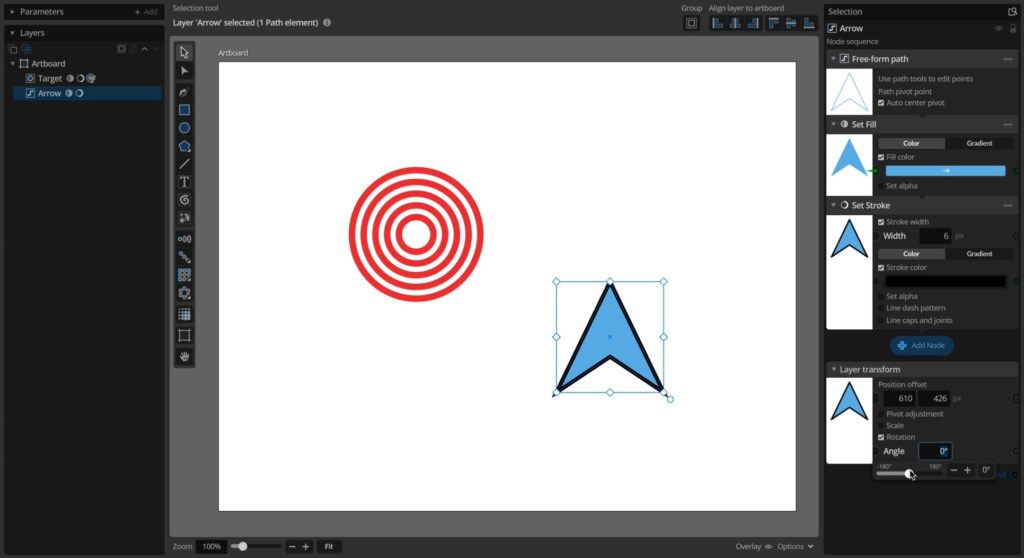
As and example of this we start this setup with an arrow shape layer and a target layer. On the arrow layer we simply use the rotation property in the transform panel at the bottom (the transformations applied to this layer) to set the rotation of the arrow. We add an Angle from points input node to get a calculated angle between two points.
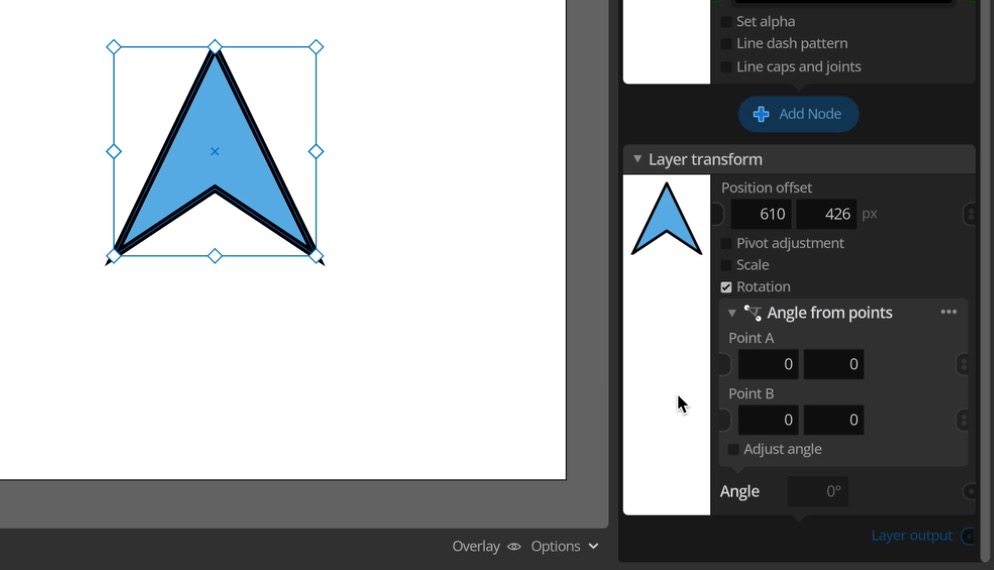
For the first point we simply connect the layer offset parameter of the arrow layer, since this will be the position of this arrow on the artboard. And for the second point we connect that to the layer offset of the target layer.
To add a connection to a parameter on another layer we can drag the connection to the layer in the layers list. If there is only one matching socket to connect to on that layer it will show the name of this socket parameter and connect right away, but usually there will be multiple matching sockets and instead say “Multiple”. In this case when you let the mouse go to add the connection you’ll get a menu selection of the matching sockets to pick which one to connect to (in the case the layer offset).
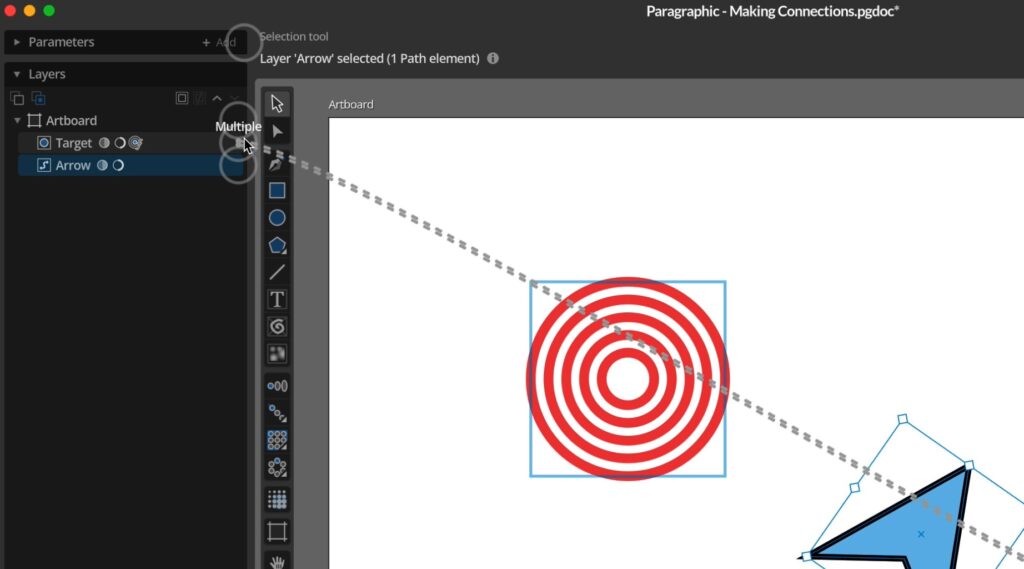
After that connection has been added we can now see that the arrow rotation is automatically set based on the angle to the target. Depending on how you’ve draw the arrow you might need to use the adjust angle option to offset it so that the point faces the right way.
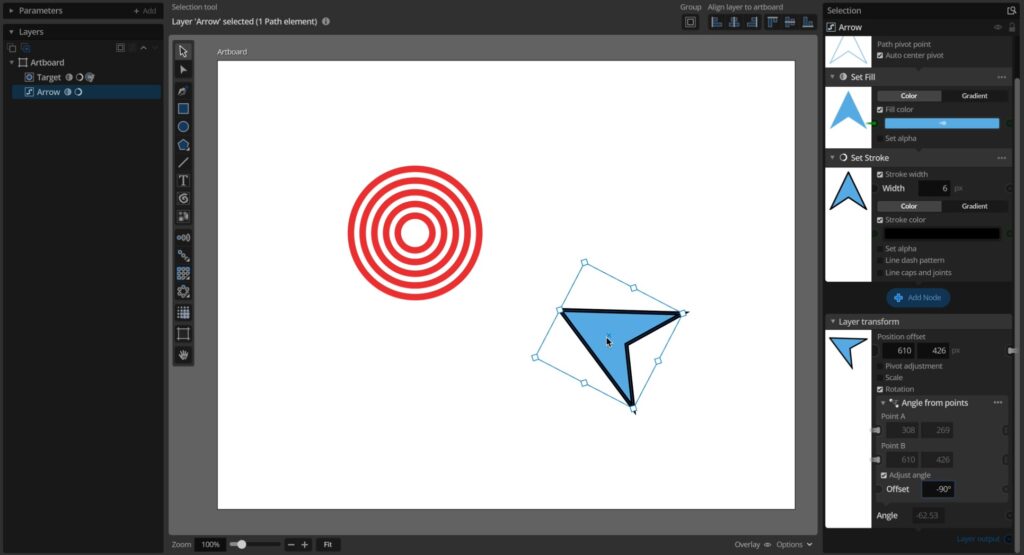
As the connections are now set you can move either the arrow or the target and see the arrow update its angle. You can even copy the arrow layer to add multiple arrows that will all be connected to face the target.
That’s it for this introduction to parameter connections and input nodes.