
This is an introduction to the more advanced layer value sampling features introduced in 1.3.1, allowing you to generate more complex dynamic patterns and designs based on images, gradients or other layers.
This video gives you a quick introduction and some examples, or you can read more details below
Apply layer node
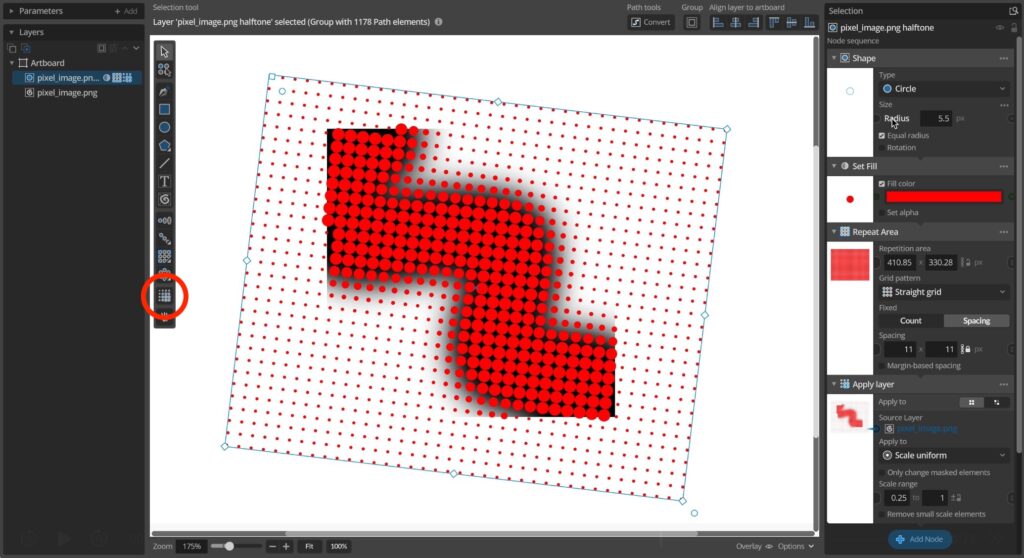
The easiest way to sample a different layer and apply this information to a group of elements (like circles in a grid) is to use the Apply layer node. You can either add this node yourself or use the Halftone area tool to quickly set up a repeater area with the Apply layer node already configured and connected to a selected area.
You connect this node to the layer you wish to sample and the node then iterates over all the elements in the input group and applies a change (like scaling or changing color) to each individual element based on the measured darkness of the pixel in the same place in the linked source/sampled layer. You can read more about this approach in the post about creating vector halftones.
While this is relatively easy to understand and set up it is limited by the fact that it needs the pattern of elements to be generated before the change can be applied. In other words after the repeater nodes. This is since the node needs to know where each point is to be sampled in the source layer. This in turn means that we can only apply some superficial changes to the elements, like transforming them or changing color. We cannot change aspects or their generation, like repetitions counts, shape parameters etc.
Value from layer node
To enable this type of more advanced dynamic generation based on layers the Value from layer input node was introduced in v1.3.1. This enables you to use values based on sampling a layer in the generation of elements in repeated patterns, in other words before the repeater node generating the pattern. This allows you then to have different versions of your repeated element be generated for each repeated copy, the much like if you were using generation index-based input nodes or random value input nodes to vary parameters. But in this case you can have the parameters vary based on sampling a linked layer, giving you a lot more control over how the values will vary.
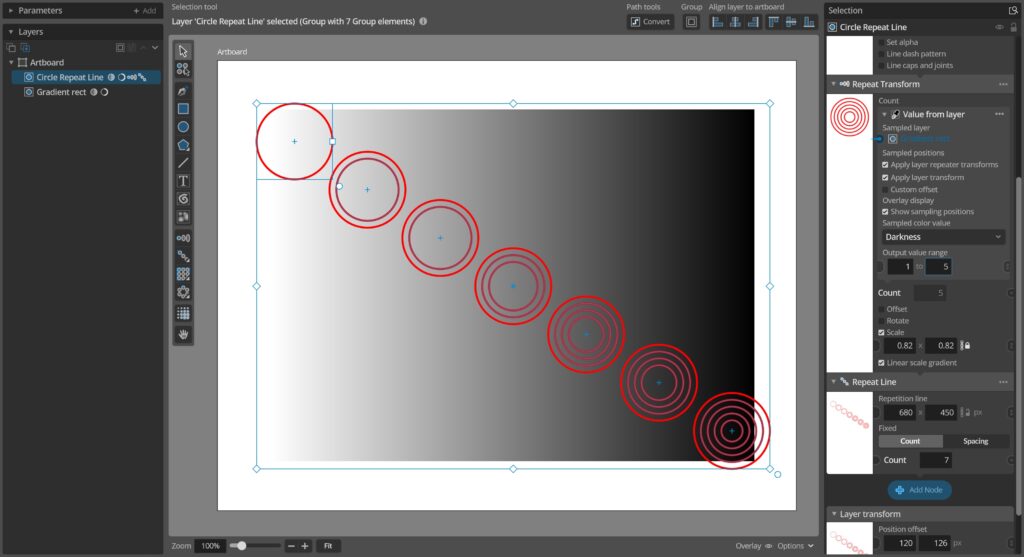
A typical example like the one above could be to have the layer generate a circle with a number of repetitions inside it using the Repeat Transform node. This is then repeated in a line to get a number of such repeated circle groups using the Repeat Line node. In this setup we can the add a Value from layer node to set the number of inner circle repetitions be based on the darkness in the sampled point where each such circle group will end up.
Limitations of layer sampling input nodes
While the basic use of these input nodes is just a matter of adding them as input nodes on the parameters you want to vary and connecting the layer you want to sample from it might be helpful to understand a little more about how they actually work under the hood to also understand their limitations.
As stated above the Apply layer node uses a ready generated group of elements to determine what points to sample in the linked sampled layer, but as the sampling input nodes (Value from layer and Color from layer) are act during generation before the repeated group is done they do not have access to this position information. So, instead what they do is use a number of systems to try and predict where the element being generated will be placed by subsequent repeater nodes in the layer node sequence.
In most cases using repeaters, and even multiple layers or repetitions, this will correctly predict where the elements will be placed. However, this system cannot take into account other nodes that transform the elements (like randomizing or applying other transforms). This is again simply because the information about how more complex nodes like Randomize or Apply function will transform elements later in the generation sequence is not available yet and not easily predicted.
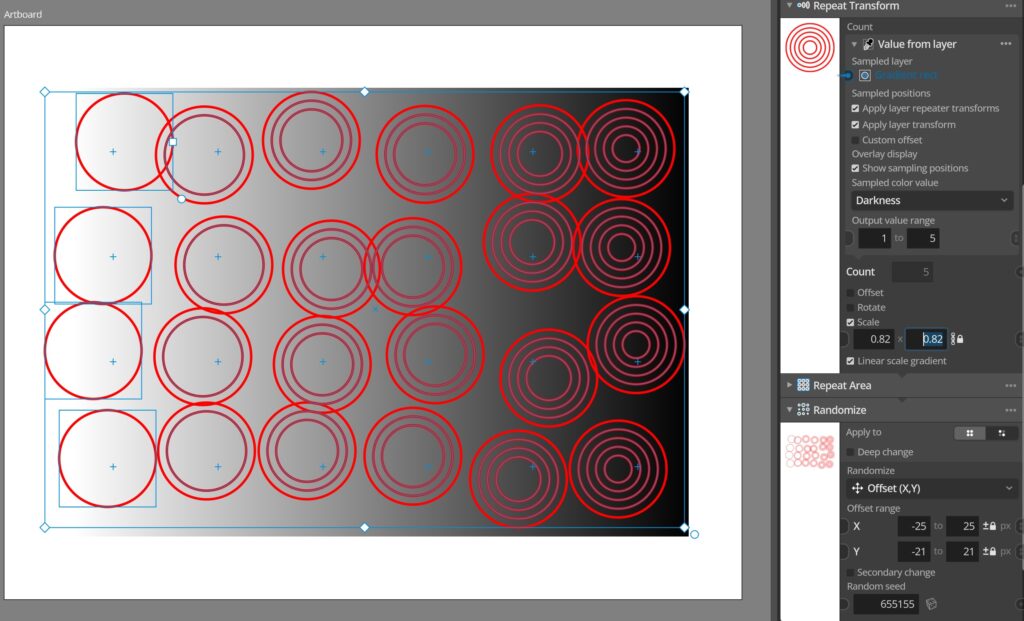
To help understand and work with this these input nodes also have a special overlay you can toggle (default on) that shows the sampling positions as little + marks in the overlay when the layer is selected. This way you can see where the sampling points are, and if they are where you want them to be. If you want to adjust the default automatic system of predicting these positions you can also disable the different steps in this calculation using the node settings and instead set a manual offset based on generation indexes for example to control where the layer will be sampled.