
This post is a more in-depth introduction to the new conditional features added in the 1.4 update. It assumes you are familiar with some of the basics of Paragraphic already (like nodes, input nodes and connections).
Here is a video version of this introduction, or you can read about the features in more detail below.
Conditional parameter input nodes
Basic parameter types such as values, colors, sizes and text strings all have conditional input nodes you can add to set their value based on a condition. For example the Conditional color input nodes added to the fill color parameter below.
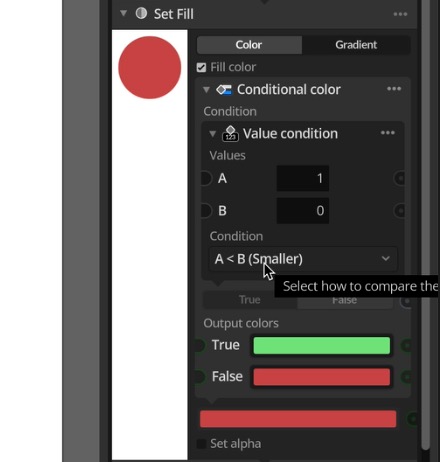
These conditional input nodes all have a Condition parameter followed by two alternative output options, one for True and one for False. The conditional input nodes then simply return the True value if the condition evaluates as true, and the False value if the condition is false.
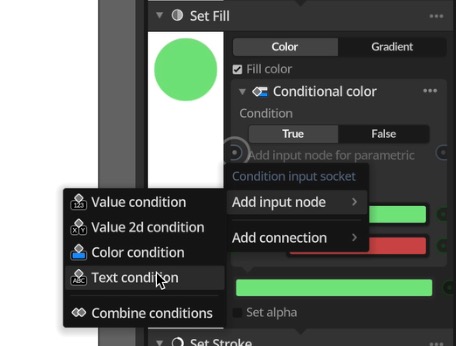
When you first add a conditional input node the Condition is just a manual True/False toggle button. To actually set up a condition that can be evaluated automatically you need to add an input node to the condition setting what type of condition you want to evaluate.
In other words the conditions are actually a type of parameters that have a set of specialized parameter input nodes to automatically set the condition to true or false, just like value or color parameter have input nodes that set their content.
Configuring conditions
After picking what type of condition you want to set (for example if you want to compare two values or two colors) you can then also configure the condition input node controlling what relationship between the input values should result in True and what should be False.
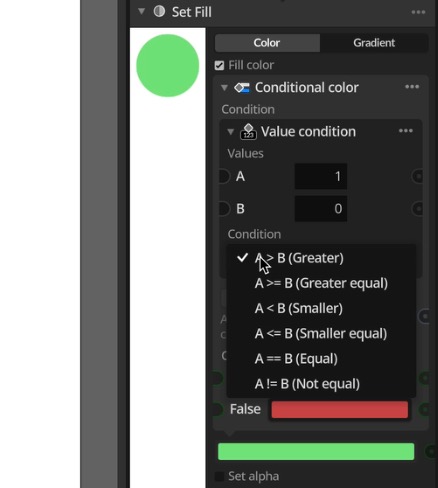
For values it’s pretty basic as you can evaluate one is greater or lower than the other or equal. But for color or 2d value conditions you can also control what properties to compare. For example only comparing the hue or brightness of two colors.
When evaluating Equal conditions between two values there’s also a fuzzy compare option that allows you to set a value margin to how close the values should be to be considered equal in this condition.
Connecting input to conditions
You can use conditional input parameter like this in generation to use different values for different elements by connecting the condition input parameters to various generation properties or other parameters of other layers to establish relationships between them.
For example you can use the Element position value input node to get the position of each element processed by a Change or Group node (like Set Fill), and this way set up a condition that will be evaluated as true or false based on the position of each element. And you can connect the other value to another layers’ position offset to get a result like the example below.
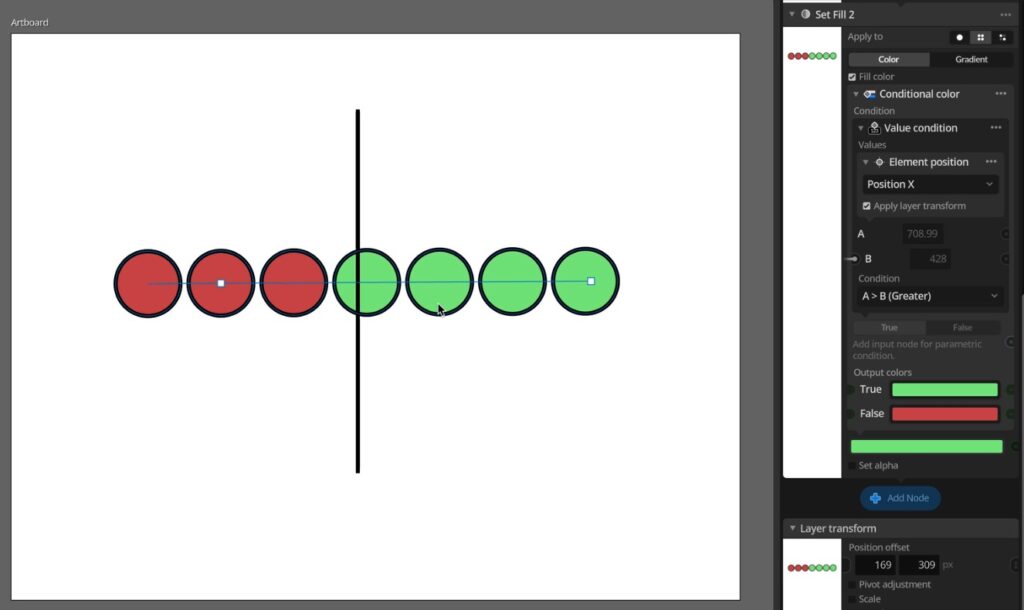
When doing this it’s important to have the layer node be set to apply the change to each element or a selection of elements so you get individual changes applied to each one.
Conditional Apply to Selection mode
Another way of using the new conditional features is via the Conditional Apply to selection mode. All Change and Group nodes (in other words all nodes that change existing element, rather than create new ones) have an Apply To setting at the top controlling what the change will be applied to. In the Selection Apply to mode you can now also pick Conditional to make a conditional selection.
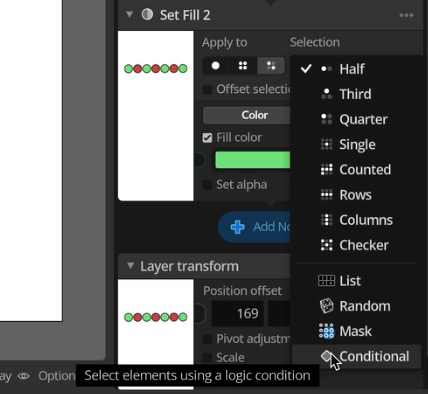
In this mode a condition parameter will be used to control what elements in the group the change of the node will be applied to. In this case we’re still using a basic Set Fill node that just changes the color. But this could just as well be a node that for example randomizes the elements or applies some more advanced effect.
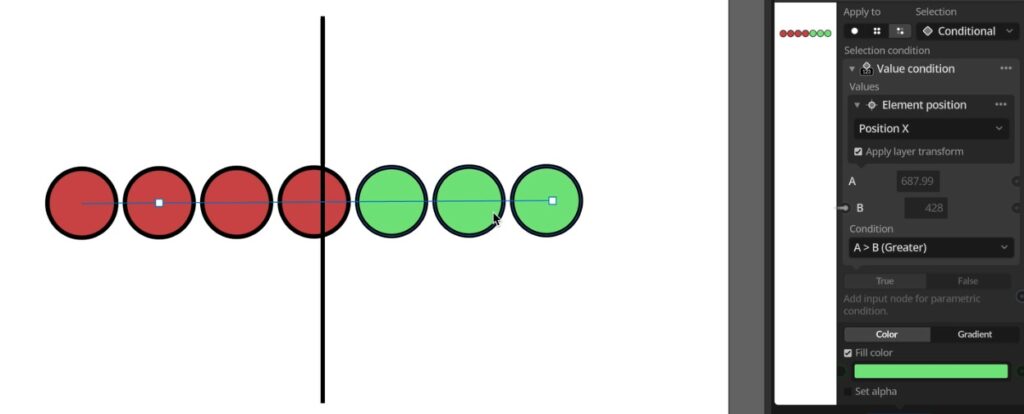
Just like with the conditional value input nodes we can then set up our condition to something that is evaluated for each element to determine if the change should be applied to this element.
Combining conditions
System of setting up conditions via input nodes also allows you to combine multiple conditions in a logic hierarchy. You do this via the Combine condition input node. Unlike the other condition nodes this input node has two separate conditions and a setting on how to evaluate the combination of these two conditions. For example you could require that both have to be true, or that either needs to be true.
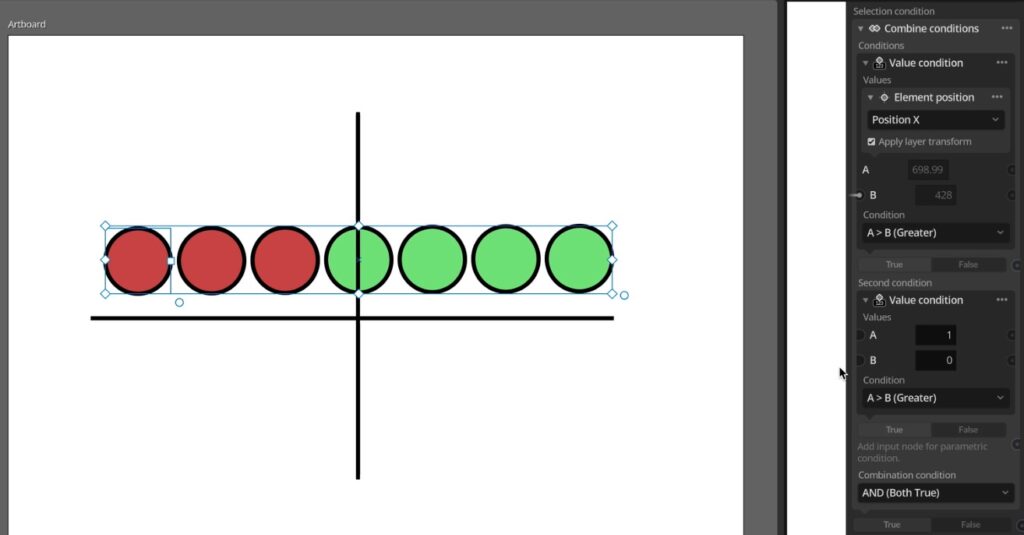
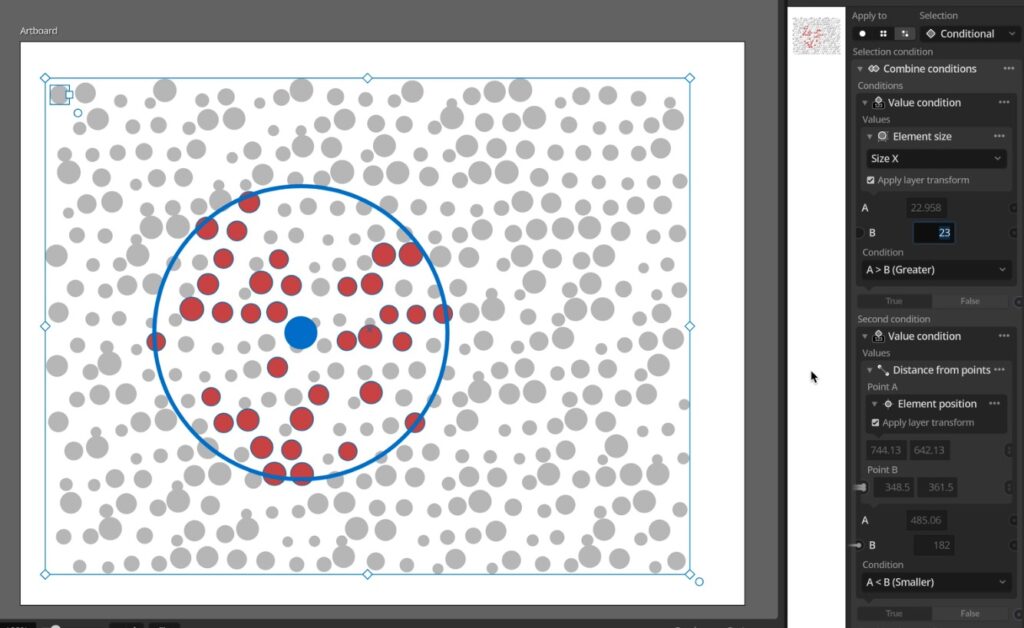
Here’s a slightly more complex example of such a combined condition, where a color change is applied only to circles that are above a specified size limit and closer than a set distance to a target point.
Use cases
While there are many situations that conditional changes like these can be used to create designs with relationships between elements, another one that stands out is data visualization, where you might want to apply some change to highlight specific elements based on their represented values.
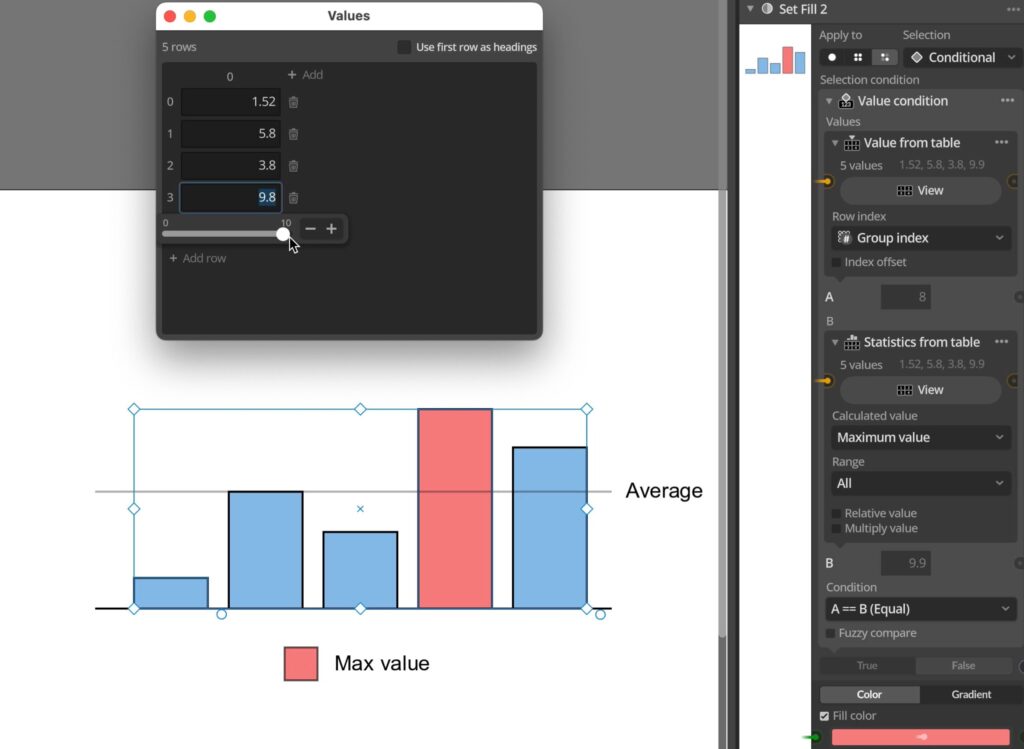
But conditional values and selection can also be used for much more basic tasks, such as cleaning up halftones and similar designs based on sampled images by removing elements that are smaller than a set size or have white color for example.