
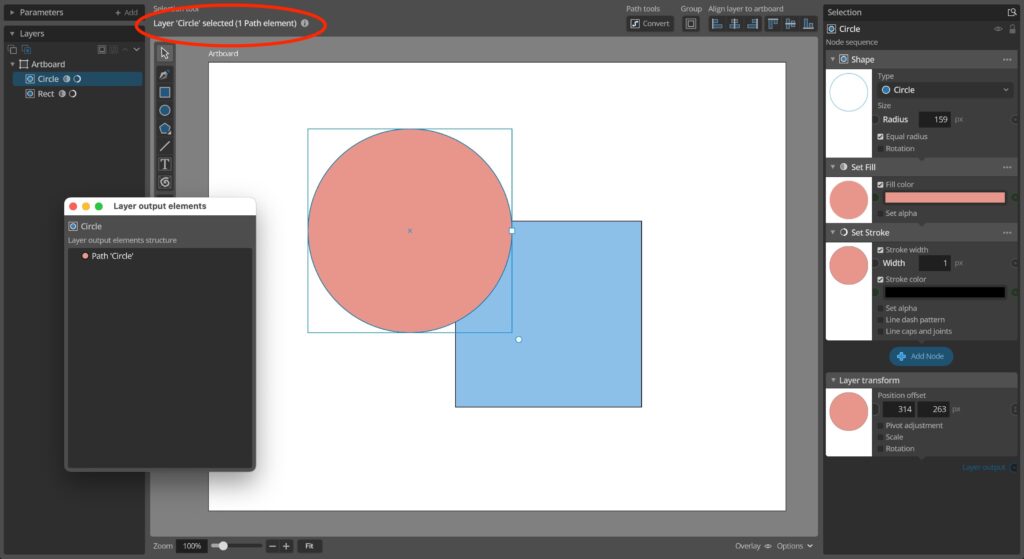
Individual shapes and other objects in layers are referred to as elements in Paragraphic. When you draw a simple shape, like for example a circle, this results in a new layer for the shape in your document. This layer in turn generates a circle shape element as it’s output.
Layers
The layers are represented in the layers panel to the left, and they are what you can select directly by clicking on them in the list or the main view. The order of the layers in this list is what determines the order of the output, and your can drag to reorder layers.
When a layer is selected a description of the output elements for this layer can be seen in the top bar. If you click the little i-icon next to the description you can open a separate panel showing the output element structure of the layer.
Elements
For simple layers like this, each layer only outputs a single element. Which might lead you to think the layers and their output elements are the same, like they are in many other vector design applications. But since Paragraphic uses a procedural generative design system, each layer is actually more of a recipe describing how its’ output should be generated.
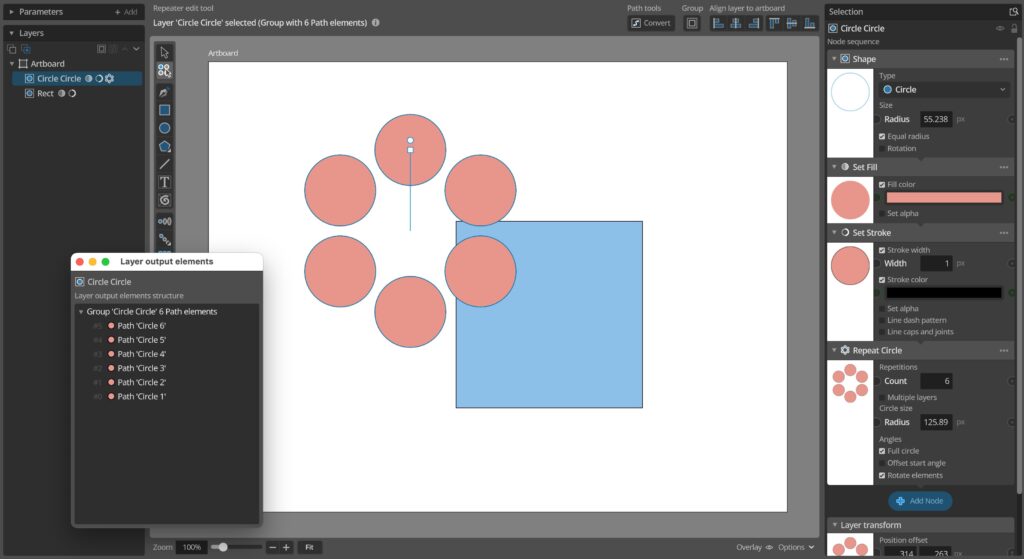
So for example we could add a repetition to the circle layer, repeating the circle six times. This circle of circles is still just one layer, but if we inspect the layer output elements we can see that this layer now outputs a group element containing six individual circle path elements.
Group elements and Group layers
Adding repeater nodes like this that create repeated patterns will result in a layer outputting a group or more complex hierarchy of elements. Another case of this is if you group layers.
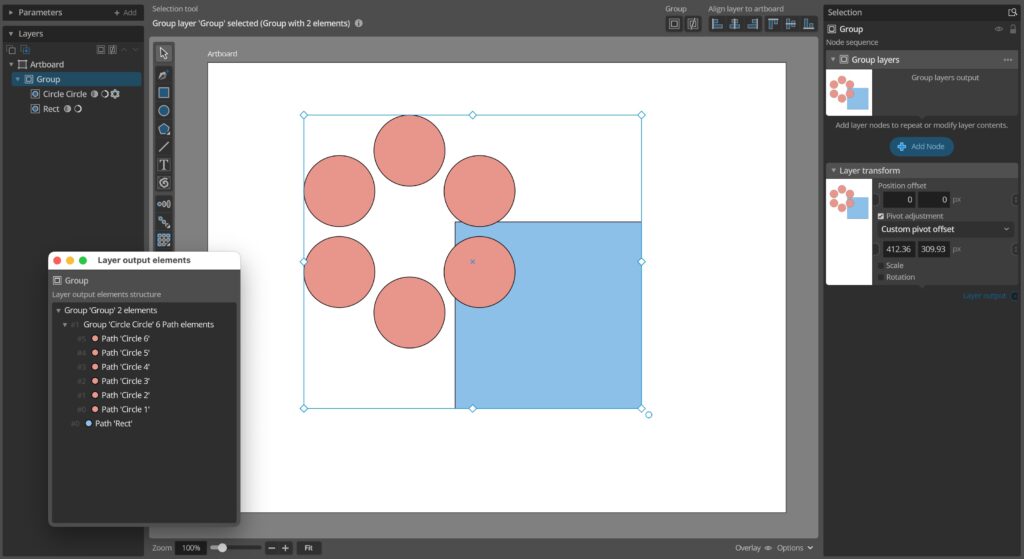
Above we’ve now grouped the two layers and take a look at the output elements of this group layer. We can see that the output is a group containing the group from the Circle circle layer, and a single element from the Rect layer.
Group elements like these can be modified by nodes just like any other elements, and nodes can be added on group layers just like on shape layers. Understanding how this output element structure is generated will help you understand how and where you can add nodes to produce the effects you like.
Export SVG structure
The output structure presented in this Layer output elements panel also described how the exported SVG element structure will look and how elements will be named, so you can see what the output structure will be for SVG export to file or when a single layer is copied as SVG to the clipboard.